
User Guide
Welcome to musen, your personal AI-powered live radio. This guide walks you through everything you need to know to get the most out of the musen app, from your first listen to shaping a station that feels truly yours.
What is musen?
musen is AI Radio: a continuous stream of music, chosen and sequenced in real time by AI, that adapts to your taste, your mood, and the time of day. There are no playlists to build and nothing to search for. You press play, and your radio does the rest. The current release is free.
Key Features
- Live Radio: Your own personal radio station that plays continuously and evolves with your listening.
- Requests: Tell your radio what you want to hear in natural language, by voice, or even with a picture.
- AI Host: An optional voice (the "host speaker" in settings) that introduces tracks and adds talk moments between songs.
- Like and dislike: Rate the song that's playing. musen uses those moments to enrich your profile.
- Personalization: musen learns from every interaction, so your station keeps getting better the more you listen.
Who is musen For?
- Music Lovers: Discover new artists and genres tailored to your mood and preferences.
- Radio People: Enjoy the effortless feel of real radio, tuned to one listener: you.
- Casual Listeners: Just press play. No playlists, no queues, no decisions.
This guide covers the musen mobile app. As new features arrive in later phases, this guide will grow with them.
Getting Started
Getting the App
musen is available on Google Play for Android and on the App Store for iPhone.
Creating Your Account
musen needs an account so your radio can learn who you are. Creating one takes less than a minute:
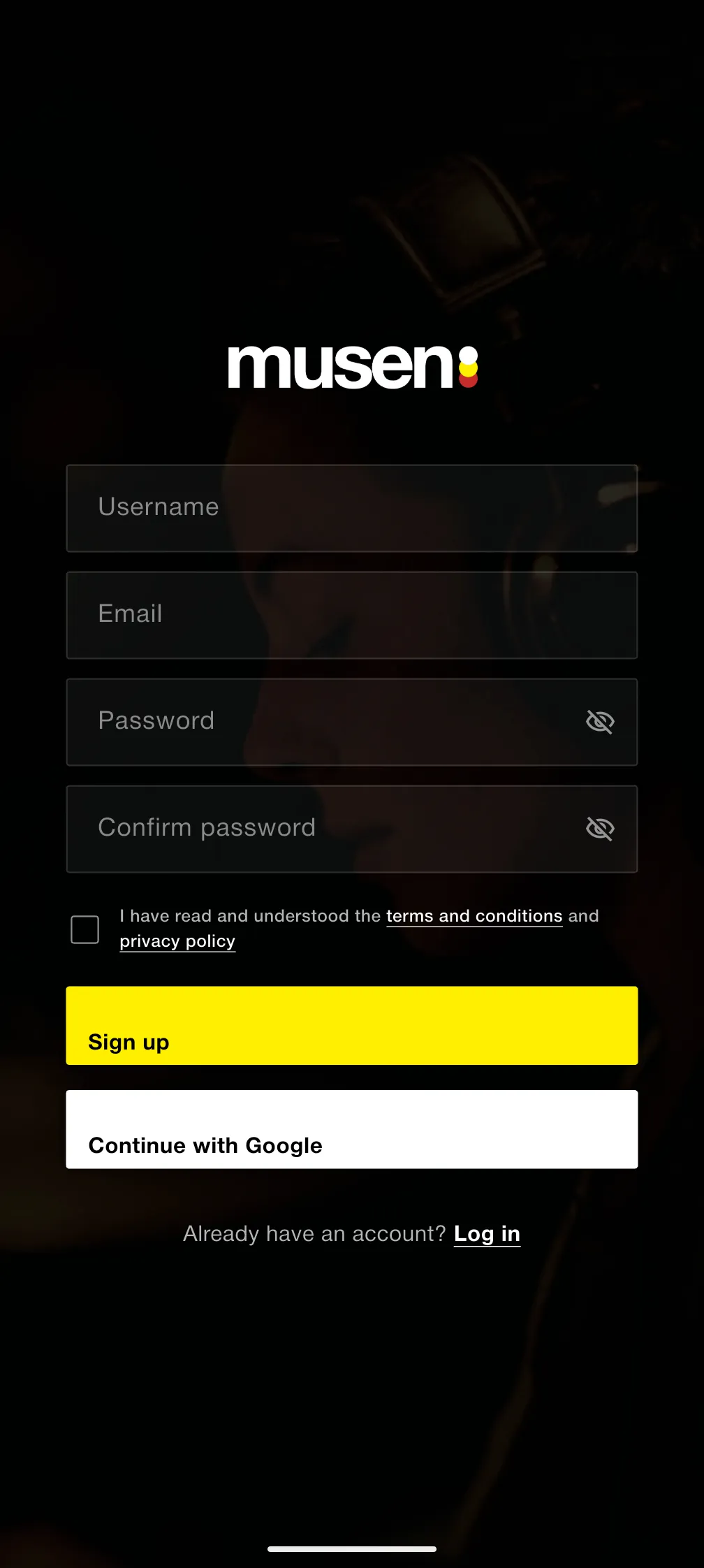
- Open the app. You'll be greeted with the sign-up screen.
- Choose how you want to join:
- Email: Enter your email, set a password, and confirm it.
- Google: Continue with your Google account.
- Apple: Sign in with Apple (on iPhone and iPad).
- Accept the Terms and Conditions and Privacy Policy.
- Tap Sign up. If you registered with email, check your inbox for a verification link.
The Onboarding Experience
Right after joining, musen guides you through a short setup, three steps and you're listening:
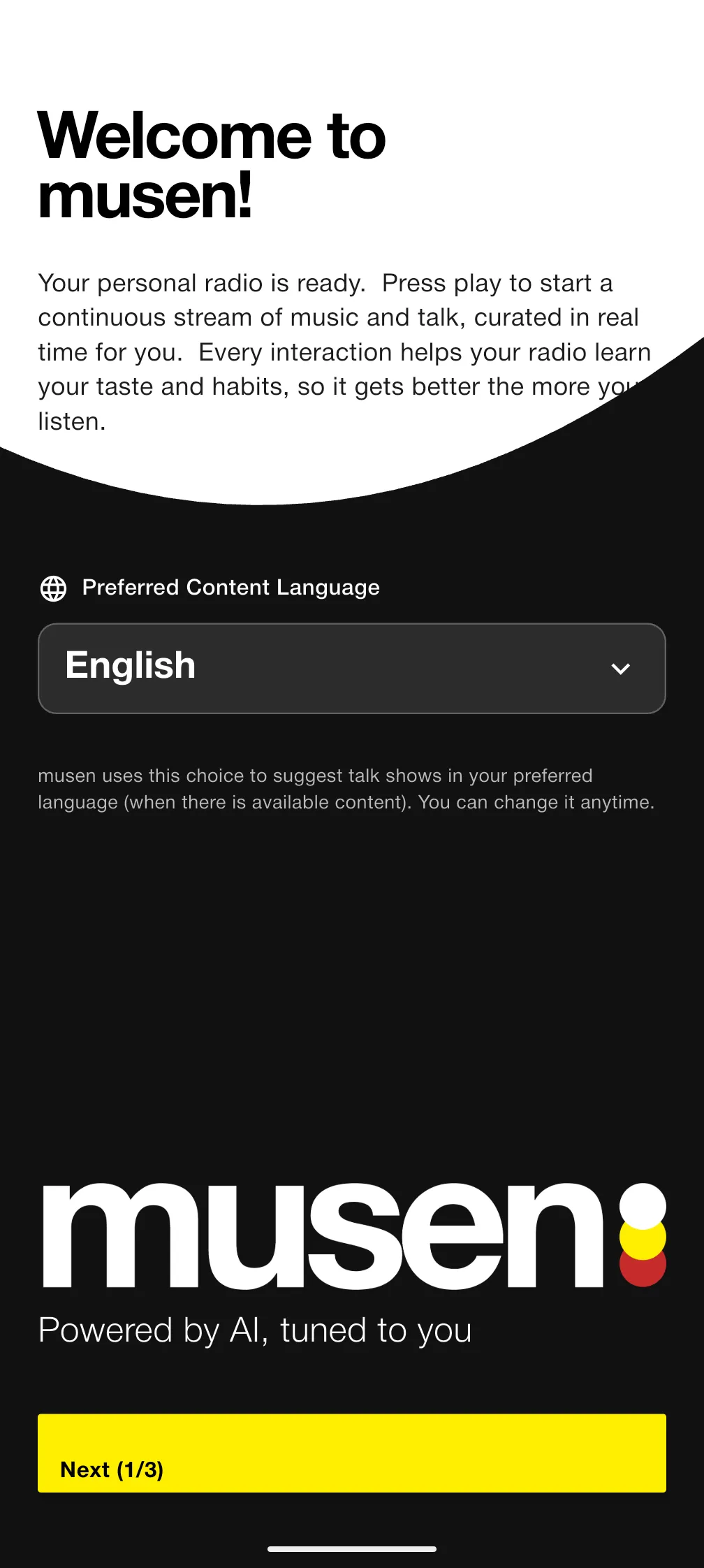
Step 1: Welcome & Content Language
Your personal radio is activated, and you choose your preferred content language (English, Spanish, German, Italian, or Portuguese). musen uses this to suggest talk shows in your language when available. You can change it anytime from Account settings.
Step 2: How It Works
A quick introduction to effortless listening, and to segments: the curated blocks of around 30 minutes of music (and sometimes talk) that your radio weaves into a living, always-evolving stream.
Step 3: Train Your Radio
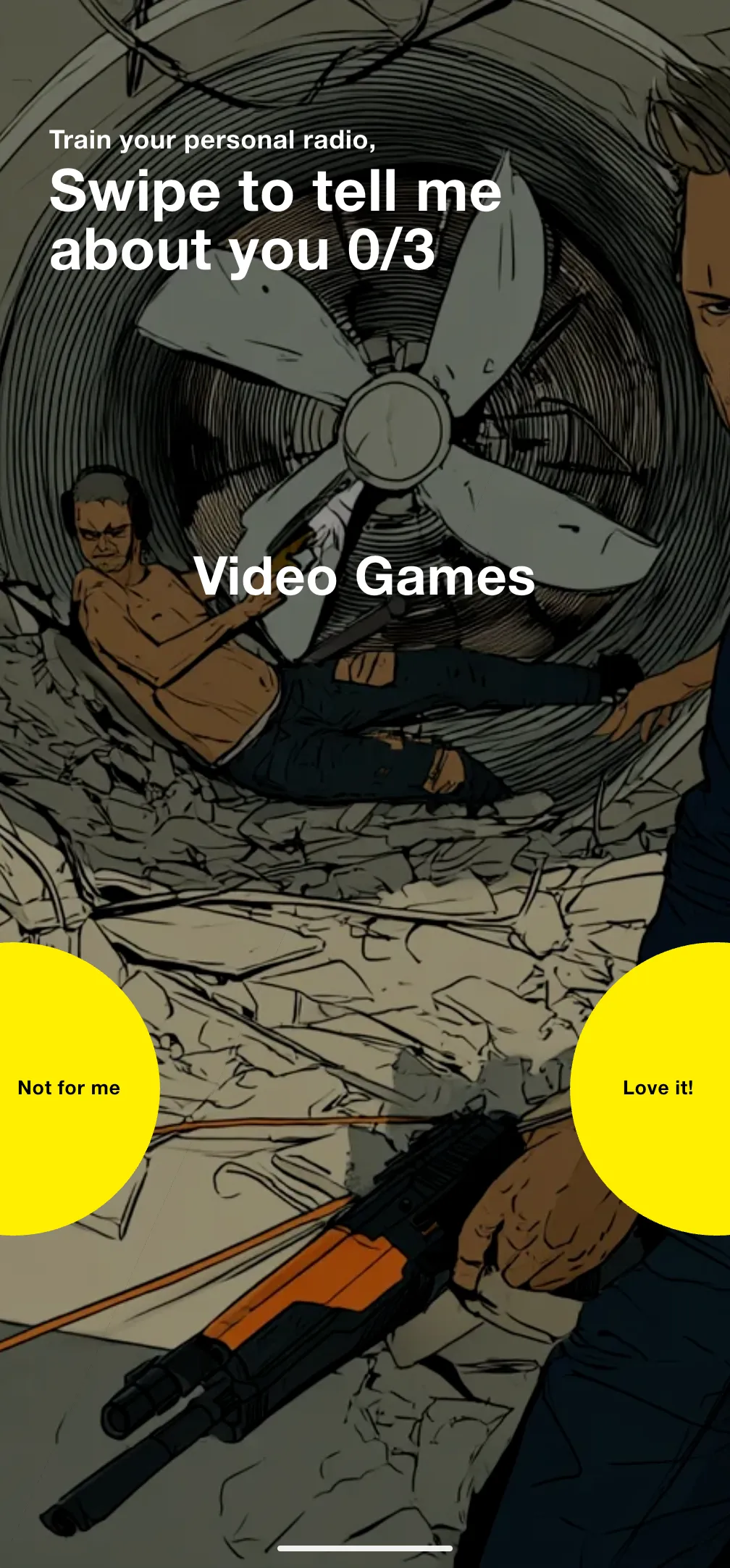
This is where musen starts learning your taste. You'll see a series of interest cards representing different genres, moods, and themes.
- Swipe right, "Love it!", for interests you love
- Swipe left, "Not for me", for interests that aren't your thing
- Complete at least 3 swipes to continue
When you're done, tap Start Listening. Your radio is ready.
Be honest with your swipes! The more accurate your training, the better your radio will sound from the very first minute.
First-Time Checklist
- Press play in the center of the disc and let your Live Radio introduce itself
- Tap like or dislike while a song plays
- Tap request and make your first request
- Open settings and give your station a name
- Tap profile and personalize your account
- Come back to Train Radio now and then to keep your taste profile sharp
Live Radio
Live Radio is the heart of musen: a personal station that plays continuously, curated in real time around your taste. It's free for everyone.
The Home Screen
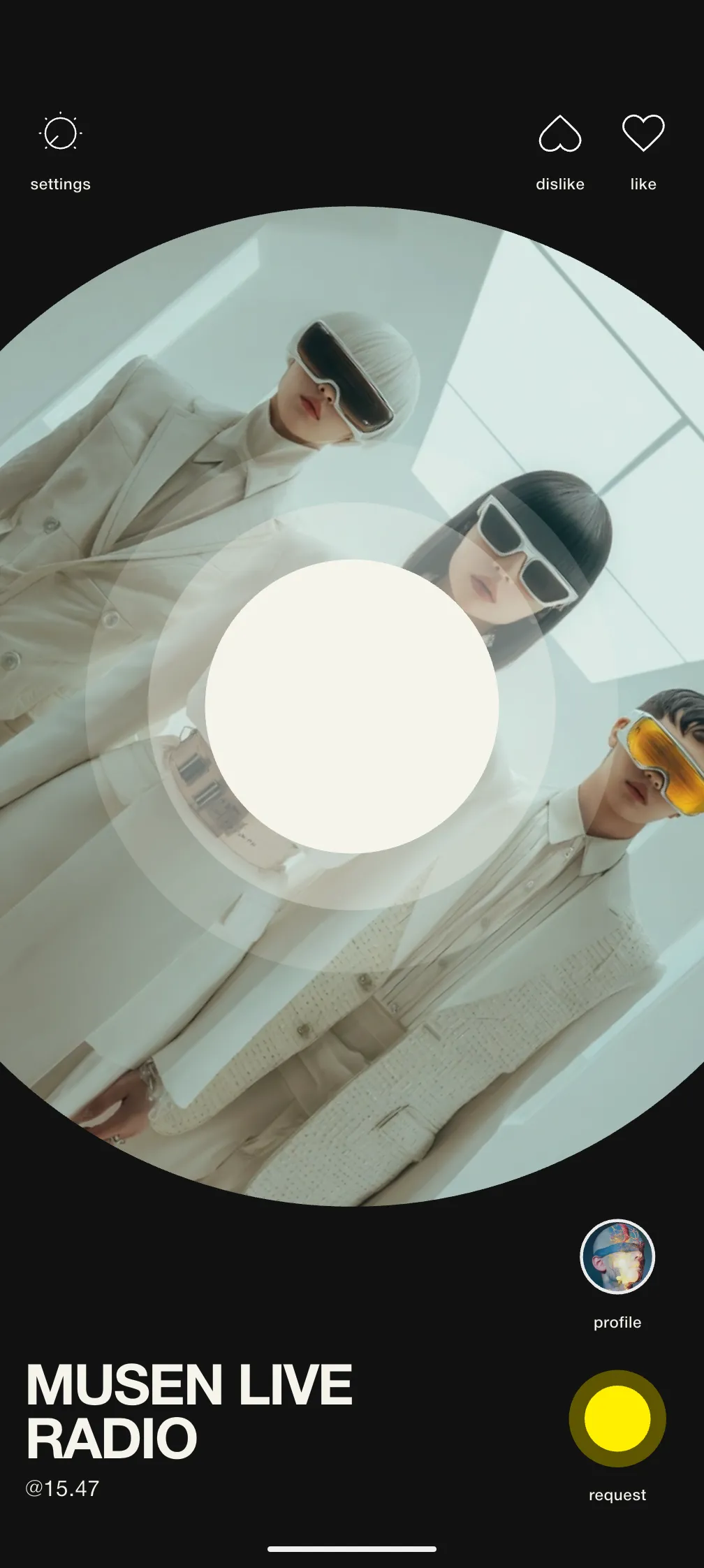
In the Immersive theme, your station fills the screen:
- Station artwork: The large circular art of your station. It spins while your radio is playing.
- Play / Pause: In the center of the disc. A spinner appears while your station is connecting.
- settings: Top left, opens your Live Radio settings.
- like and dislike: Top right. Rate the song that's playing. You can tap more than once on the same track.
- profile: Bottom right, opens your Account.
- request: Below profile, opens the request screen.
- Station name & frequency: Bottom left, showing your radio's on-air identity and @frequency.
Press play in the disc center and your radio connects and starts streaming. If it needs a moment, you'll see "Your Live Radio is warming up", just try again shortly.
Like and dislike don't stay marked on screen, so nothing tells you how you've rated a song before. musen weighs those taps together over time: a track that usually fits can still miss this hour, and that still counts. Those signals enrich your profile so the radio learns your taste in context, not as a fixed list.
Making Requests
Tap request (bottom right on Home) to tell your radio what you'd like to hear. Describe a vibe, a genre, or a topic in your own words, up to 240 characters, or:
- Tap a suggestion chip for instant inspiration
- Use the microphone to speak your request
- Use the camera to snap a picture and let musen turn the scene into music
You'll also find your current prompt, your request history, and a reset option on the same screen.
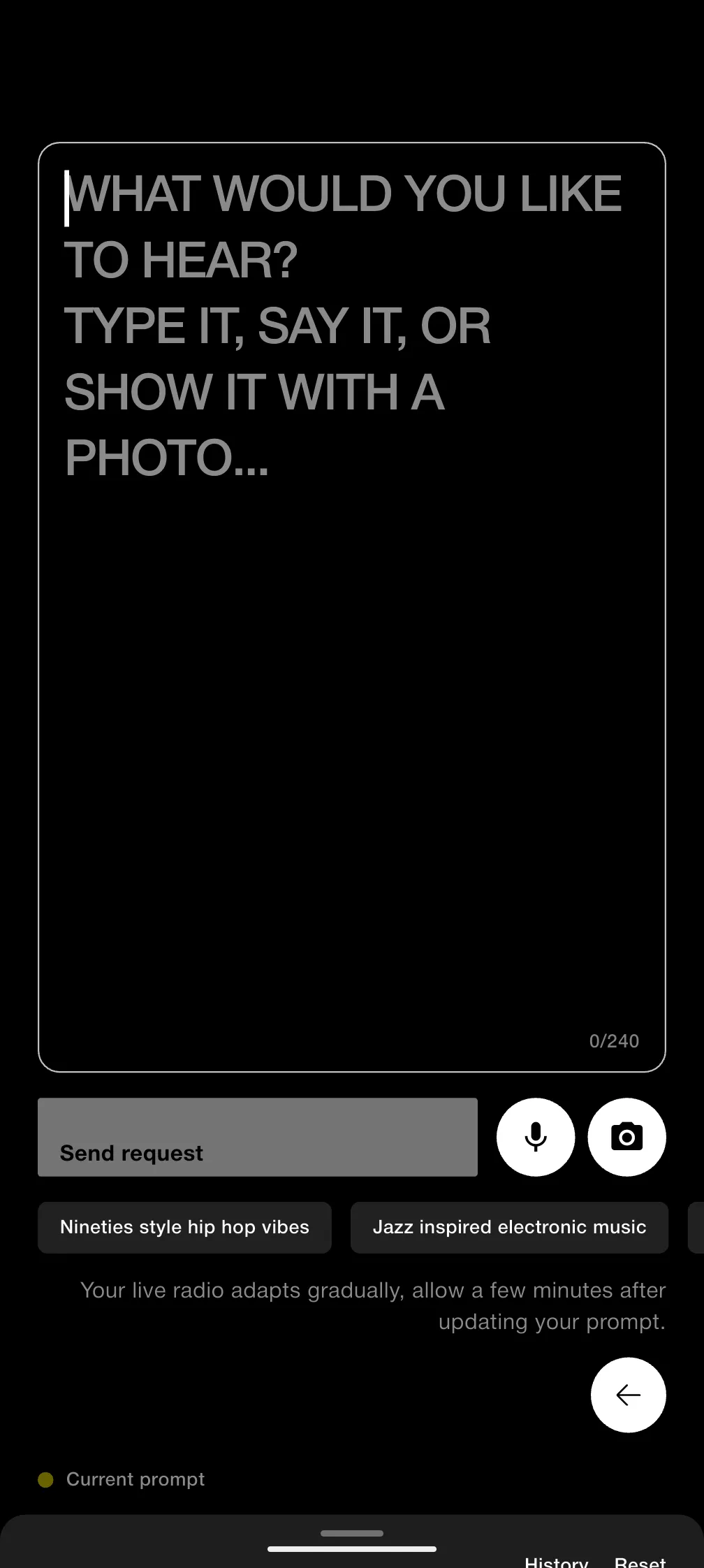
Your live radio adapts gradually. Allow a few minutes after updating your prompt for the stream to shift.
Live Radio Settings
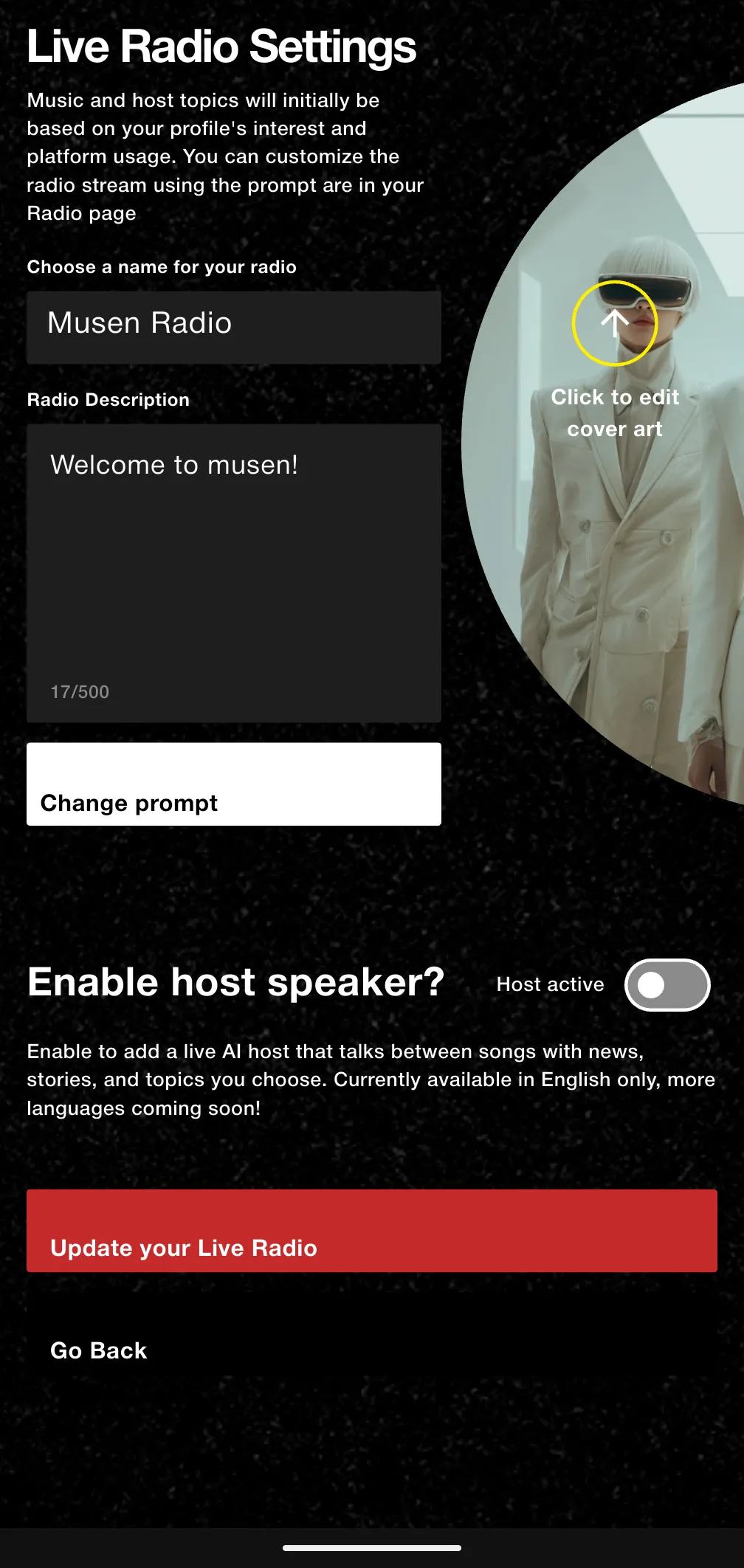
Tap settings (top left on Home) to shape your station:
- Name & description: Give your station its own identity.
- Cover art: Upload a cover image for your station.
- Change prompt: Jump to the request screen to update what your radio is playing toward.
- Host active: Turn the AI Host on or off.
Tap Update your Live Radio to apply your changes, or Go Back to leave without saving.
AI Host Settings
With Host active on, you can fine-tune the voice that talks between songs:
- Voice: Choose Male 1, Female 1, Male 2, or Female 2, and tap Test voice to preview. Voice cloning is coming soon.
- Personality: Neutral, Serious, Funny, or Create yours.
- Speaker interval: How often the host speaks (every 4, 6, 10, or 12 songs).
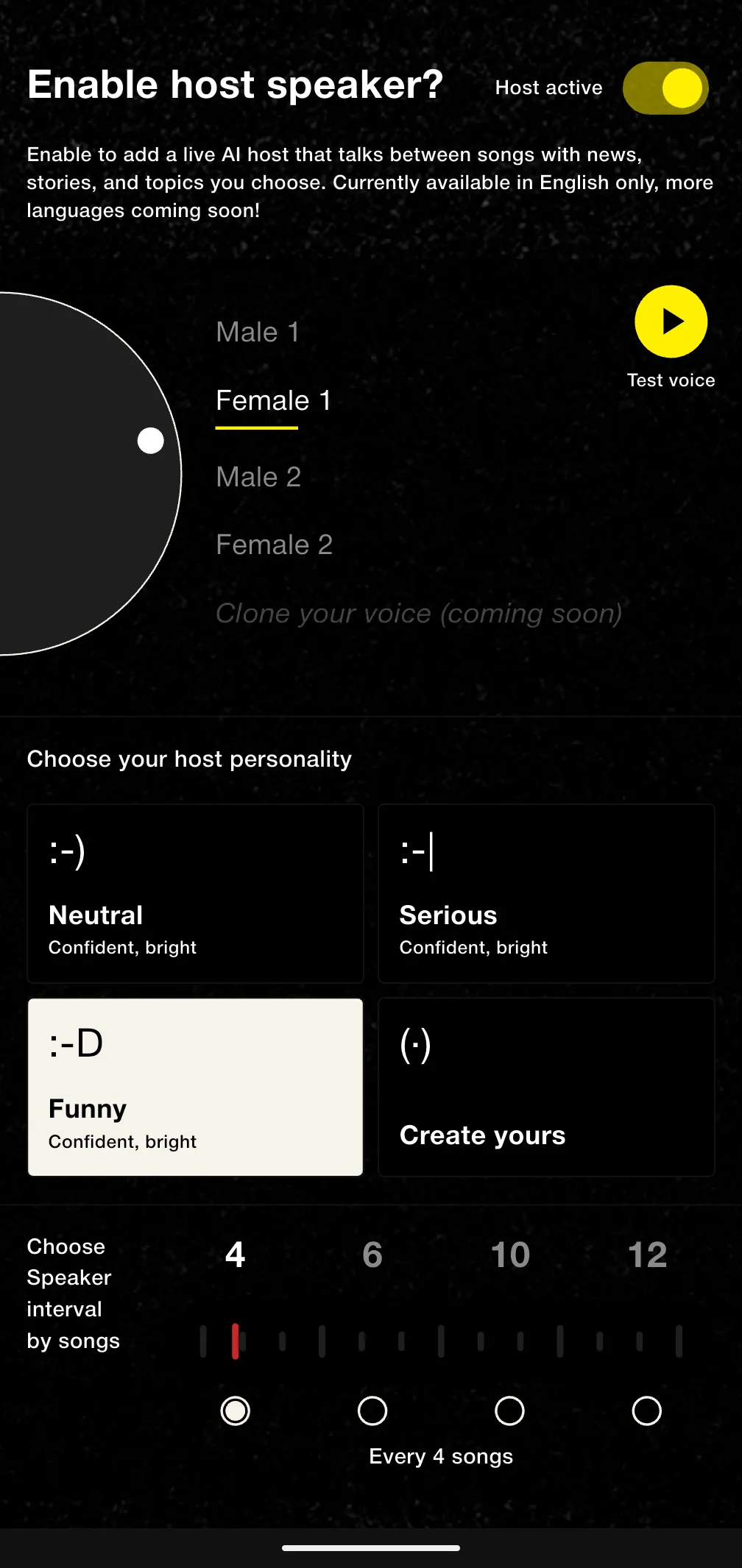
The AI Host currently speaks English only. More languages are coming soon.
Account & Profile
The Account Screen
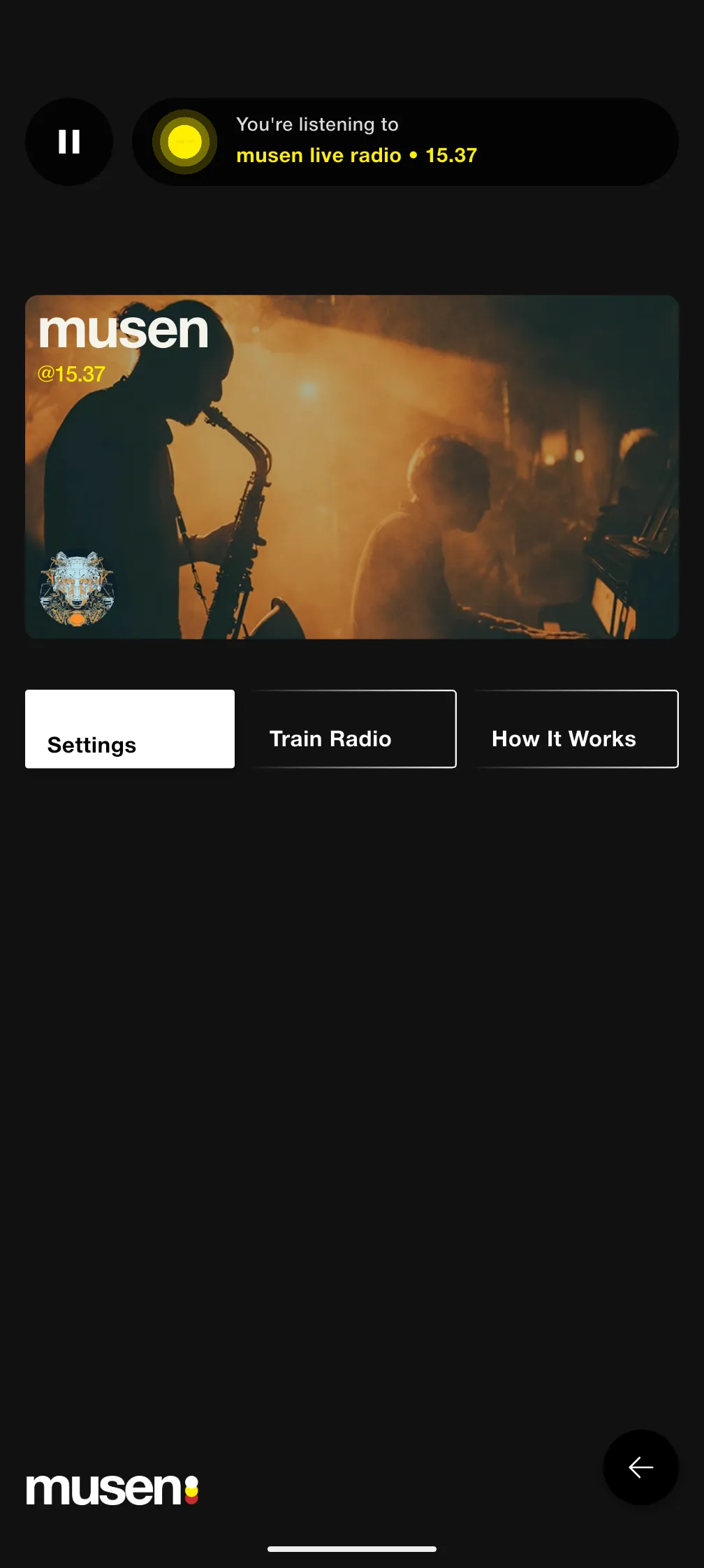
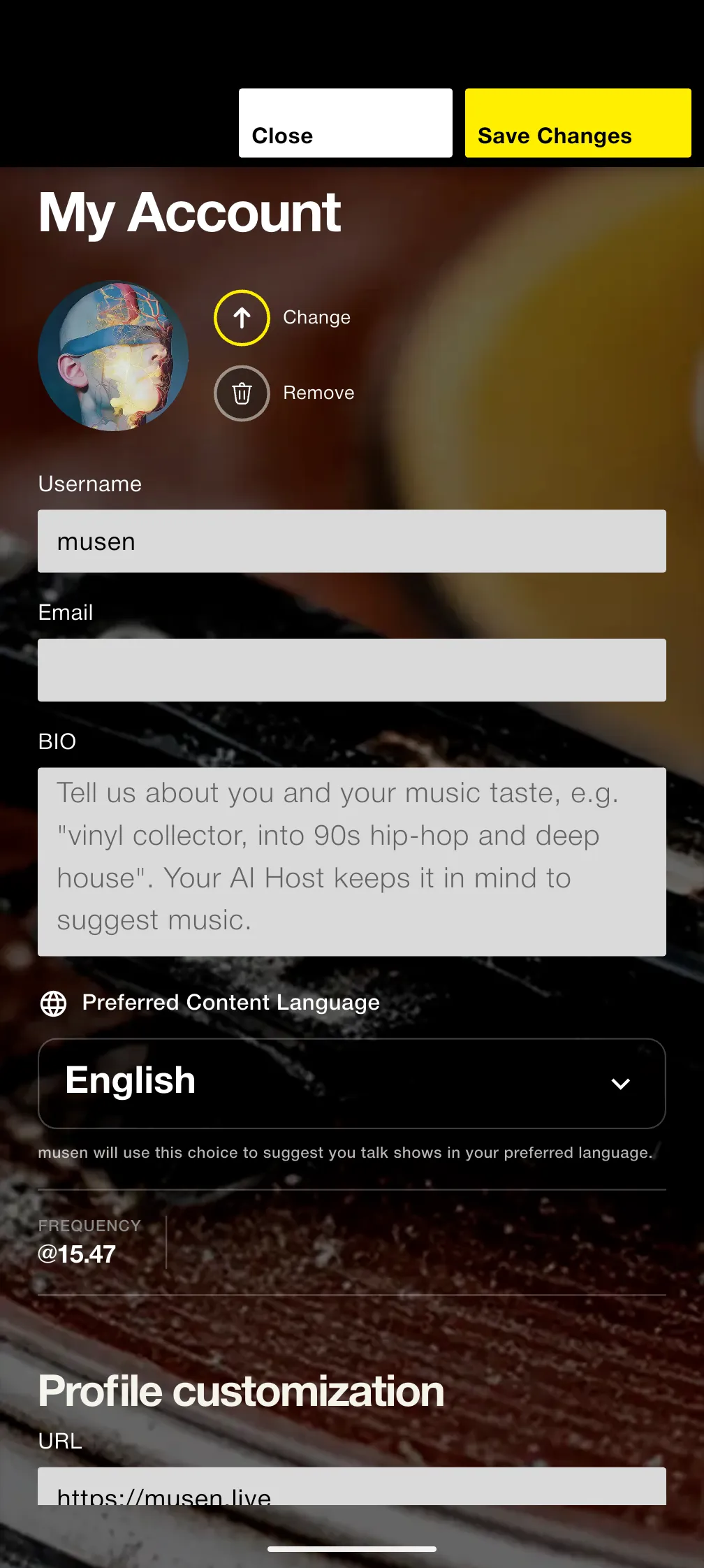
Your Account screen shows your profile card, your unique @frequency, and your avatar, plus three tabs:
- Settings: Edit your profile and preferences (see below).
- Train Radio: Replay the swipe game anytime to refine your taste profile.
- How It Works: A refresher on what musen is and how your radio learns.
Settings
From Account > Settings you can manage:
- Avatar: Change or remove your profile picture.
- Bio: Tell the world about yourself (up to 300 characters).
- Preferred content language: The same choice you made during onboarding.
- Home theme: Choose how your Live Radio home screen looks. The default is Immersive (the layout this guide describes). More themes are coming soon.
- Change password: For email-registered accounts.
Your profile handle and email address are shown here too, and your @frequency lives in the profile section. Remember to tap Save Changes when you're done.
Account Actions
- Sign out: Settings > Sign-out. You'll be asked to confirm.
- Report a problem: Settings > Report, to flag issues directly from the app.
- Delete account: Settings > Delete account. This asks for a double confirmation.
Deleting your account is permanent and cannot be undone. Your profile and taste data are removed for good.
Personalization
Every interaction with musen is a signal. Here's how your radio learns to sound like you:
Train Radio
The swipe game from onboarding is always available at Account > Train Radio. Each "Love it!" and "Not for me" reshapes your taste profile, and a fresh round now and then keeps your radio in step with how your taste evolves.
Like and dislike
Tap like or dislike on Home while a song plays. Repeat as often as you want; musen combines those moments rather than taking a single tap as the last word. Because the buttons reset, you judge the song as it is right now, including the times a favourite isn't right for the mood, the request, or the time of day.
Requests
Your requests are the most direct signal of all. Every prompt teaches your radio what you're in the mood for, right now and over time.
Just Listening
musen also learns quietly from how you listen: what you play, when, and for how long. The more you listen, the better your radio gets, no effort required.
Content Language
Your preferred content language shapes the talk shows and hosted moments your station suggests. Change it anytime from Account > Settings.
Tips & Tricks
Writing Great Requests
- Be specific about the vibe: "late-night mellow electronic" beats "good music".
- Mix mood and moment: "Sunday morning coffee jazz" gives your radio a lot to work with.
- Try topics, not just genres: Ask for a theme and let musen surprise you.
- Use the camera: A photo of a sunset, a city street, or your bookshelf can become a soundtrack.
Getting the Most from Your Station
- Name your station: It makes the radio feel like yours from day one.
- Experiment with the host: Try different voices and personalities, or go music-only.
- Give changes a few minutes: Your radio adapts gradually, like a real DJ reading the room.
- Retrain seasonally: A quick Train Radio session refreshes your profile as your taste shifts.
Everyday Listening
- Use lock-screen controls: Play and pause without opening the app.
- Let it run: musen is built for long, continuous sessions. It only gets better as it plays.
Coming Soon
musen is growing. Here's a peek at what's on the way:
- New sections: Discovery and exploration features are part of the broader direction and will arrive in later phases.
- More host languages: We're working on AI Host voices beyond English.
- And more: Follow musen on social channels for announcements.
This guide is updated as new features arrive. Check back after app updates!
Troubleshooting & FAQ
Common Issues
Problem: You tap play but nothing happens.
Solutions:
- Check your volume: Make sure your device volume is up and silent mode is off.
- Check your connection: musen needs an internet connection to stream.
- Give it a moment: If you see "Your Live Radio is warming up", wait a few seconds and press play again.
- Restart the app: Close musen completely and reopen it.
Problem: Can't log into your account.
Solutions:
- Check your credentials: Ensure email and password are correct.
- Use "Forgot password": Request a reset link from the login screen.
- Try Google or Apple: If you originally registered with one of them.
- Contact support: If you still can't access your account.
Problem: You registered with email but no verification link arrived.
Solutions:
- Check spam: The email may have been filtered.
- Wait a few minutes: Delivery can occasionally take a moment.
- Contact support: We'll get you verified.
Problem: The music doesn't feel like you.
Solutions:
- Make a request: Tap request and describe what you want. It's the fastest correction.
- Like or dislike: Tap while a song plays. Honest reactions, including the times a favourite misses, help the radio learn.
- Retrain: Play a round of Train Radio from your Account tab.
- Give it time: Your radio adapts gradually. A few minutes after a request, a few days of listening overall.
Frequently Asked Questions
Yes. The current release is free, with no paid features or in-app purchases.
Yes. musen is available on the App Store for iPhone and on Google Play for Android.
Not yet. musen streams your radio live, so it needs an internet connection.
From your Train Radio swipes, your requests, likes and dislikes while you listen, and simply how you listen. Every interaction is a signal, and your radio keeps improving the more you use it.
Go to Account > Settings and pick your preferred content language, then tap Save Changes.
Go to Account > Settings > Delete account. This action is permanent and cannot be undone.
Yes. Your taste profile stays inside your account. Please refer to our Privacy Policy for complete details on how we handle your data.
Glossary
| Term | Definition |
|---|---|
| Live Radio | Your personal, continuously playing radio station, curated in real time by AI. |
| Segment | A curated block of around 30 minutes of music (and sometimes talk) that your radio weaves into its stream. |
| Request / Prompt | A message to your radio, typed, spoken, or photographed, describing what you want to hear. |
| AI Host (Host Speaker) | The optional AI voice that introduces tracks and adds talk moments between songs. Labelled "host speaker" in Live Radio settings. |
| Personality | The style of your host speaker: Neutral, Serious, Funny, or one you write yourself. |
| Frequency | Your unique @username identity on musen. |
| Train Radio | The swipe game that teaches musen your taste, available anytime from your Account tab. |
| Like / dislike | Home-screen taps for the song that's playing. musen weighs them together over time; the buttons don't stay marked. |
| Station Artwork | The circular cover image of your Live Radio, spinning while it plays. |
Support & Contact
Getting Help
If you need assistance with musen, we're here to help.
- Email: admin@musen.live
- In-app: Account > Settings > Report
- Website: musen.live/about
Feedback
We love hearing from our users! Feature requests, bug reports, and general suggestions all help us improve musen. Drop us a line at admin@musen.live.
Stay Connected
Follow musen for updates, tips, and community highlights:
- New feature announcements
- Listening tips and tricks
- What's unlocking next
Thank you for choosing musen!
Powered by AI, tuned to you.